
 Tiếng Việt
 한국어
한국어 日本語
日本語Article
Fix Excel Inventory Formula Errors and Lock Data with Data Validation

On this page
Formula errors in an Excel inventory file almost always come from the data going in, not from the functions themselves: a mistyped SKU or a stray space makes SUMIFS return 0, a lookup returns #N/A, a number formatted as text triggers #VALUE!. Locking the SKU column with Data Validation and protecting formula cells with Protect Sheet solves most of these at the source.
This article covers how to lock the data, read each error code correctly, and the operational tips that matter once the file is in daily use: protecting the sheet, connecting a barcode scanner, managing several warehouses and rolling figures over to a new financial year. If you have not built the file yet, start with how to build an Excel inventory file with four sheets.
1. A Quick Recap of the File Structure
If you have built the file with the four standard sheets, the reference columns used in the formulas below will match the table here. If you named your columns differently, adjust the cell addresses in the formulas accordingly.
| Sheet | Key reference columns | Used in |
|---|---|---|
| Catalog | Column A: SKU Code · Column B: Product Name · Column E: Minimum Stock | Data Validation, XLOOKUP |
| Inbound | Column C: SKU Code · Column F: Qty Received | SUMIFS for Total Received |
| Outbound | Column C: SKU Code · Column F: Qty Issued | SUMIFS for Total Issued |
| Summary | Column D: Opening Stock · Columns E–F: Total Received/Issued · Column G: Closing Stock · Column I: Alert | Summary formulas, IF alert |
Data moves in one direction: the Catalog sheet supplies the drop-down list to the Inbound and Outbound sheets, and both feed their figures into the Summary sheet through SUMIFS. If your operation runs more than one storage site, agree on how to code locations following the principles of organising a warehouse efficiently before filling in the Storage Location column.
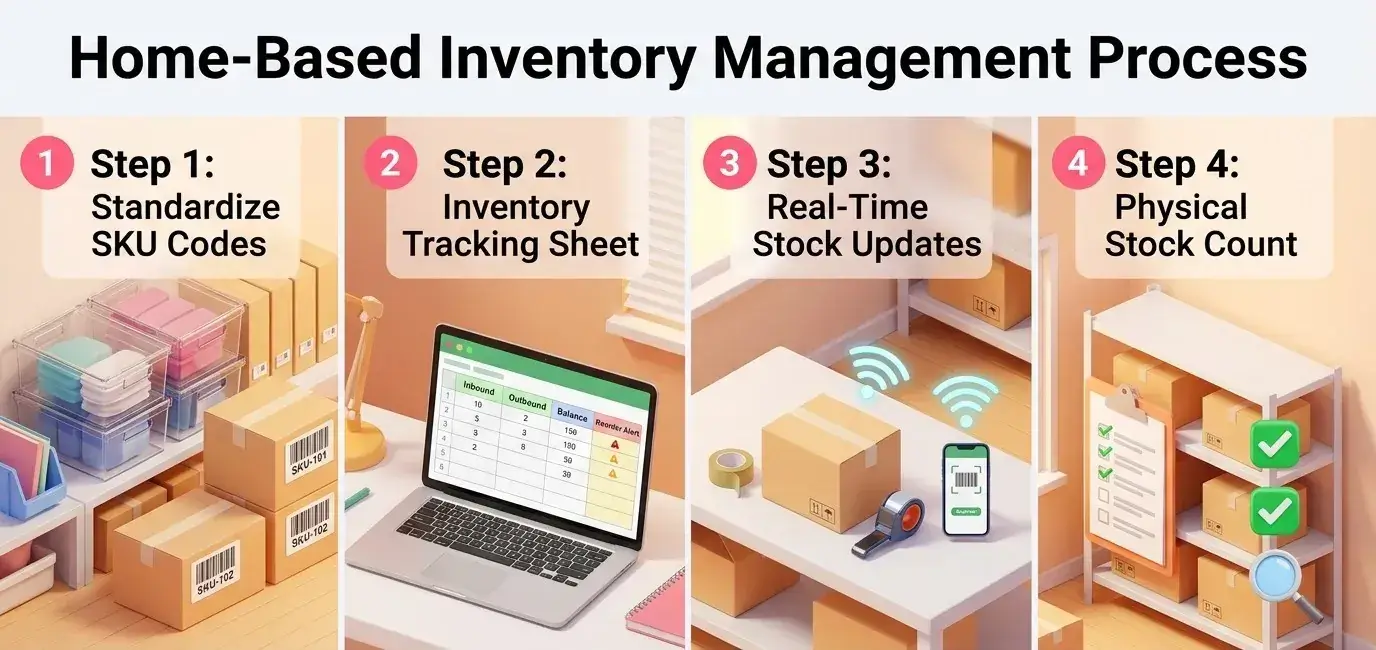
2. Locking the Data with Data Validation
A mistyped SKU is the leading cause of serious errors in the summary sheet, because one extra space or a code invented on the spot in the transaction log is enough for SUMIFS to skip that row without reporting anything. Data Validation closes off the chance of a typo or an ad-hoc code from warehouse staff, forcing every entry to pick a code already declared in the source catalogue. How to design SKU codes and standardise the catalogue is covered in the step on building the product catalogue.
Setting Up the SKU Drop-Down List
- Select the whole
SKU Codecolumn on both theInboundandOutboundsheets. - Go to the toolbar: open the Data tab > choose Data Validation.
- Under Allow, choose List.
- Under Source, enter the reference formula:
=Catalog!$A$2:$A$100(or=INDIRECT("Table_Catalog[SKU Code]")if the catalogue is already an Excel Table). - Switch to the Error Alert tab, choose the Stop style and enter the message: "This SKU does not exist in the catalogue. Please check again!". Click OK to finish.
Blocking Duplicate Codes in the Catalogue Itself
Locking the drop-down on the transaction sheets only solves half the problem, because if the source catalogue already holds two rows with the same SKU, every lookup formula downstream will be wrong with no obvious cause. Select the SKU Code column on the Catalogue sheet, open the Data tab > Data Validation > under Allow choose Custom > enter the formula =COUNTIF($A:$A, A1)<=1. Excel will block the user the moment it finds the code has already been entered.
3. Automation Formulas and How to Handle Errors
Three functions keep an in-out-balance file running automatically: SUMIFS (totalling figures against a condition), XLOOKUP (pulling the product name from the SKU) and IF combined with Conditional Formatting (flagging low stock). More important than all three is knowing how to read the error codes when a formula returns something unexpected, because that is the point at which most people give up and go back to writing things down by hand.
Three Core Formulas
- Closing stock in cell
G2on theSummarysheet:=D2+E2-F2(opening stock + total received − total issued). - Total received in cell
E2:=SUMIFS(Inbound!$F:$F, Inbound!$C:$C, A2), which adds up every quantity in column F of the Inbound sheet on rows whose SKU matches cell A2. - Total issued in cell
F2:=SUMIFS(Outbound!$F:$F, Outbound!$C:$C, A2), same logic but reading from the Outbound sheet. - Product lookup in cell
D2on theInboundsheet:=XLOOKUP(C2, Catalog!$A:$A, Catalog!$B:$B, "No name yet", 0). On Excel 2019/2016, which has no XLOOKUP, use=IFERROR(VLOOKUP(C2, Catalog!$A:$E, 2, FALSE), "No name yet"). - Status alert in cell
I2:=IF(G2<=0, "OUT OF STOCK", IF(G2<=H2, "REORDER NEEDED", "SAFE")), then colour each status with Conditional Formatting > Highlight Cells Rules > Text that Contains.
The inventory management in Excel article has a wider table of common Excel functions if you need to go beyond these three.
Reading the Three Common Error Codes
- The
#N/Aerror: A lookup function (XLOOKUP, VLOOKUP) cannot find a matching SKU in the source catalogue. Wrap the formula inIFERROR(formula, "fallback value")or check whether the code has been declared in the catalogue at all. - The
#VALUE!error: A calculation has accidentally added or subtracted a cell containing a space or text. Check the quantity cells in the transaction sheets and make sure they are all formatted as numbers (Number) rather than Text. - The
#REF!error: A row, column or sheet has been deleted and the formula has lost its reference. Avoid deleting structural columns outright; pressCtrl + Zimmediately to restore anything deleted by mistake. - SUMIFS returns 0 even though stock was received: The most common cause is inconsistent data formatting between the two sheets, or an SKU on one of them carrying a trailing space. Use
=TRIM()to clean the text before matching.

4. Controlling Errors and Protecting the File
Widely cited research into spreadsheet risk finds that most medium and large spreadsheets contain mistakes made by people. Two layers of defence are essential: reconciling the figures regularly, and locking the file so staff cannot accidentally break the formulas.
Three-Way Reconciliation of Stock Figures
- Book inventory: The quantity calculated in the Excel file from the recorded receipts and issues.
- Physical inventory: The quantity counted directly on the racks in the warehouse.
- Available inventory: Physical inventory minus the goods already ordered by customers and waiting to be packed.
Apply cycle counting weekly or monthly to high-value product groups so discrepancies surface as soon as they appear, rather than waiting for a full count at the end of the year.
Locking the Sheet to Protect Formulas
A staff member accidentally typing a figure over a cell that holds an automatic formula is the usual reason a whole calculated column breaks. How to lock it:
- Select the entire sheet, press
Ctrl + 1, open the Protection tab and untick Locked. - Select only the columns containing formulas (columns D, E, F, G and I on the summary sheet), press
Ctrl + 1, open the Protection tab and tick Locked. - Open the Review tab > choose Protect Sheet, and set a password so staff can only enter data in the unlocked cells.
Add OneDrive or SharePoint on top to enable real-time co-authoring and automatic version history, which makes recovery quick when something goes wrong — particularly useful when several people save the file over a local network and overwrite each other.
5. Advanced Operating Tips
The steps below usually only come up after a few months of real use, once the file has several users and transaction volumes start to climb.
- Fill in dates the right way: Use the
Ctrl + ;shortcut to insert today's date as a fixed value when creating a slip. Avoid using=TODAY()directly in the log, because it changes to the next day every time the file is reopened, corrupting every older slip. - Managing several warehouses in one file: Add a "Warehouse Code" column to the Catalogue, Inbound and Outbound sheets, then use SUMIFS with two conditions at once (SKU Code and Warehouse Code) to total each location separately.
- Tracking expiry dates: Add an "Expiry Date" column to the Inbound sheet and use DATEDIF with Conditional Formatting so the sheet automatically flags batches with under 30 days left or already expired.
- Printing goods-issued slips automatically: Add a "Print_Slip" sheet laid out like a standard issue slip, then use XLOOKUP or FILTER to pull the items of a given slip number into the print area.
- Rolling figures into a new financial year: At year end, save a fresh copy of the file, take the "Closing Stock" column from the old year and paste it as values (Paste Special as Values) into the "Opening Stock" column of the new one, then clear the old transaction rows from both logs.
- Connecting a barcode scanner: Most standard USB or Bluetooth barcode readers behave like a keyboard, so scanning the code on the packaging types the SKU straight into the selected cell and presses Enter for you, with no extra software needed. If you want scanning to deduct stock in real time rather than write into an Excel cell, that is the point at which you need a warehouse management system (WMS).
- Sharing the file with several people: Upload the file to OneDrive or SharePoint and switch on AutoSave so authorised members can open and enter data at the same time in Excel for Web without overwriting each other.
- Using it in Google Sheets: SUMIFS, IF, IFERROR and Data Validation all work the same way in Google Sheets, with no conflicts when you switch platform.
6. Is the Limit the Software or the Space?
The specific signs that a file has outgrown its purpose (SKU count, orders per day, the need to manage batches and expiry dates) and a detailed comparison of Excel against WMS software are covered in the inventory management in Excel article. This section deals with a different situation: when the problem is not the tool but the physical space holding the goods.
In practice, the bottleneck in warehouse management often comes not from the spreadsheet but from physical storage space running out. When goods take over the office or the house, warehouse staff cannot find a product even though Excel still shows it in stock.
If stock swings sharply with the season (year-end mega sales, for instance) or the business is not ready to commit to a traditional warehouse lease of three to five years, finding a flexible buffer space is the most effective way to relieve the pressure.
Not sure how many cubic metres the stock you need to move out comes to? Photograph your packages and let MyStorage's AI Size Estimator work it out for you:
For online sellers and small businesses in Ho Chi Minh City, MyStorage offers self-storage and temperature-controlled mini storage: private storage units from 1 m³ to over 10 m³, rented by the month, which you can scale up or down with your business cycle without the long-term commitment of a traditional warehouse.
Inventory Tool Costs by Scale
What you spend on management tools rises with the size of your catalogue and the number of warehouses:
| Solution | Suitable Scale | Reference Cost (VND) |
|---|---|---|
| Self-built Excel / Google Sheets file | Under 200 SKUs, 1 warehouse | 0 VND |
| Advanced Excel inventory template (Macro/VBA) | Under 500 SKUs, 1 warehouse | 300,000 – 1,000,000 VND (one-off) |
| Basic sales and inventory software | Under 2,000 SKUs, 1-3 warehouses | 150,000 – 400,000 VND / month |
| Full WMS for enterprises | Over 2,000 SKUs, multiple warehouses | 1,500,000 – 8,000,000+ VND / month |
The software prices above are general market references. If your problem is a lack of physical space rather than software, see the MyStorage personal storage price list or check the exact price for your size.
Pick a storage type, size and temperature option to see today's MyStorage price instantly and book with an offer:
Summary
A solid Excel inventory file does not stop at four correctly structured sheets; it needs three more layers of protection: Data Validation to block wrong codes at the point of entry, a proper understanding of the error codes so you can fix problems yourself instead of giving up, and sheet locking plus cloud storage so shared users do not break each other's data. With all three in place, an Excel file will serve you well until the business genuinely outgrows it.
If the barrier is not the tool but the space holding your goods, combine the spreadsheet with MyStorage self-storage, or contact MyStorage for advice on the right unit size.
Frequently Asked Questions
How should SKU codes be structured to work well in Excel?
An SKU code should be short, without Vietnamese accents or special characters, separated by hyphens, and should reflect the fixed attributes of the product such as type, brand, size or colour (for example AO-POLO-TRANG-L).
What should I do when the stock figure in Excel goes negative?
Negative stock happens when an issue slip is recorded before the matching receipt, or when sales exceed the actual quantity without a corrective entry. Review the timing of the transactions and run a physical count immediately.
How many transaction rows can one Excel file handle?
In theory an Excel sheet supports up to 1,048,576 rows. In practice, once warehouse data passes about 50,000 rows alongside many array formulas, the file starts to slow down and take a long time to open.
Does Data Validation stop someone pasting over a formula?
No. Data Validation only controls values typed in; pasting over a cell that holds a formula has to be blocked with Protect Sheet (section 4). Use both layers together for full protection.
How much does renting outside storage cost for a beginner?
For a small business, renting a personal mini storage unit with air conditioning costs roughly 1,136,000 – 2,065,000 VND a month for 1 to 3 m³ (about 8 to 10 medium cartons), far cheaper than leasing a large warehouse space.
Related articles

Article
What Is Cold Chain Logistics? Process, Standards and Solutions
Cold chain logistics keeps temperature and humidity within a strict range from origin to consumer. This guide covers the standard temperature bands, the four-step process, GDP and HACCP…
Read article

Article
What Is Cycle Counting? How to Run It Without Stopping Sales
Cycle counting means counting part of your stock on a repeating schedule instead of closing the warehouse for a full count. This guide covers ABC classification, how to schedule counts, a…
Read article

Article
What Is a WMS? Functions, Benefits and How to Choose a Warehouse Management System
A WMS is warehouse management software that digitises the flow of goods from receiving and location assignment to real-time stock control, picking and dispatch. This guide covers its core…
Read article
